Normal to Passport Size AI Photo Editing Prompt: Need a passport-size photo but don’t have time to visit a photo studio? Thanks to modern AI technology, you can now transform almost any clear portrait into a professional passport-style image within minutes. Whether you’re applying for a passport, visa, government job, college admission, or any online application, AI makes the entire process faster, easier, and more convenient.
In this guide, you’ll discover how to use the Normal to Passport Size AI Photo Editing Prompt, why it has become so popular, and how to achieve natural-looking, studio-quality results without expensive software or professional photography equipment. At Sonu editor, we regularly share the latest AI editing prompts that help users create high-quality images with minimal effort.
What Is a Normal to Passport Size AI Photo Editing Prompt?
A Normal to Passport Size AI Photo Editing Prompt is a detailed instruction given to an AI image generation or editing tool. Instead of simply asking the AI to “make this passport size,” the prompt clearly explains how the final image should look.
The AI adjusts elements such as:
- Plain white or light-colored background
- Proper head alignment
- Natural facial expression
- Balanced lighting
- Accurate skin tone
- Professional framing
- High-resolution output suitable for printing
With the right prompt, AI can produce results that closely resemble professionally captured passport photographs.
Why AI Passport Photo Editing Is Becoming So Popular
Traditional passport photography often requires visiting a local studio, waiting for your turn, and paying for printed copies. Sometimes the final image doesn’t match your expectations because you have little control over the pose, lighting, or expression.
AI has completely changed this experience. Now, you can upload an existing portrait taken on your smartphone and let AI convert it into a passport-style image in just a few moments.
Some major advantages include:
- Saves both time and money
- No professional camera required
- Easy to create digital passport photos
- Suitable for online applications
- Professional-looking results
- Beginner-friendly process
These benefits have made AI passport photo editing one of the fastest-growing trends in AI image generation.
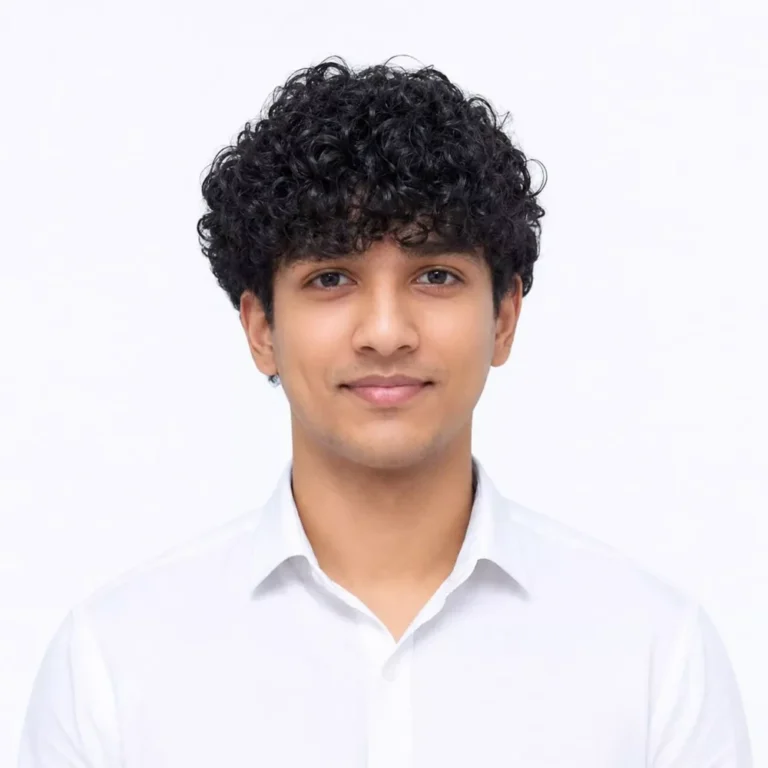
Ultra-realistic passport photo of Hasnain Alvi (exact face, 100% likeness, no changes). Wearing white formal shirt, neutral closed-lip expression, straight look, both ears + shoulders visible. Even lighting, plain white/light blue background. Output: one identical passport-size photos on one sheet, high-res studio quality.
100 percent uploaded my face and enhanced Ultra HD 8K resolution.
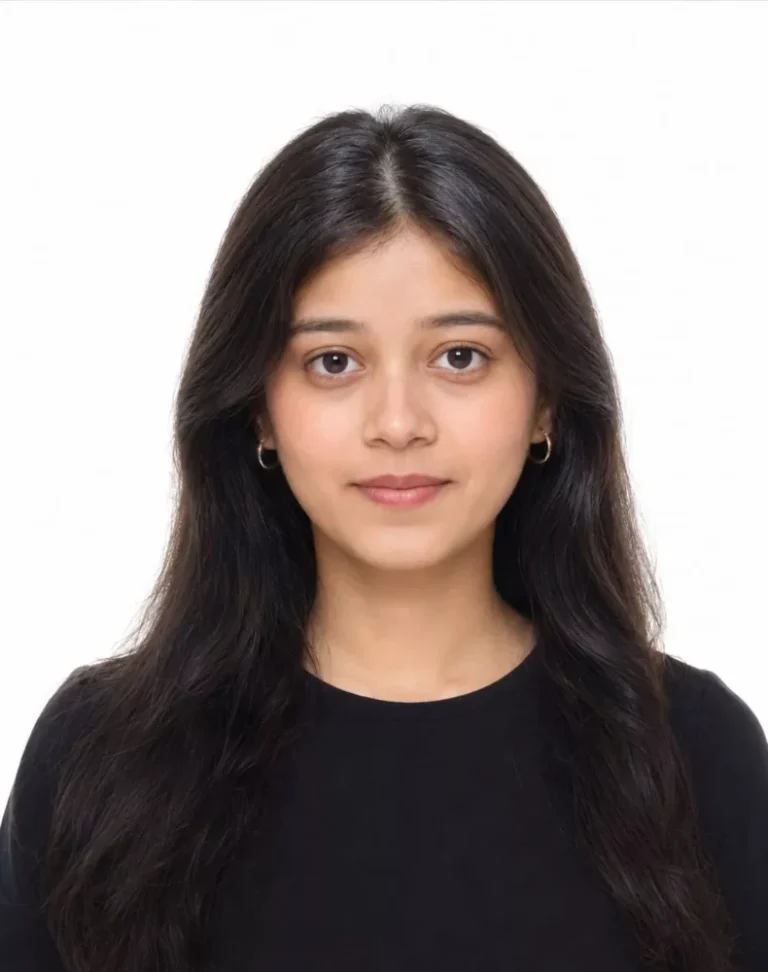
Generate a studio-quality, ultra-realistic passport-size portrait in 35mm × 45mm aspect ratio. The subject faces the camera directly with a neutral expression, both eyes open, and is centered in the frame with shoulders visible. Use a plain white background and soft, even lighting without harsh shadows. Dress the subject in plain, solid-colored formal or casual clothing with no patterns. Keep the face sharp, preserve natural skin tones, and ensure nothing covers the face except for valid religious or medical reasons. Maintain proper head spacing to meet official passport photo standards. High-resolution, photorealistic, highly detailed.
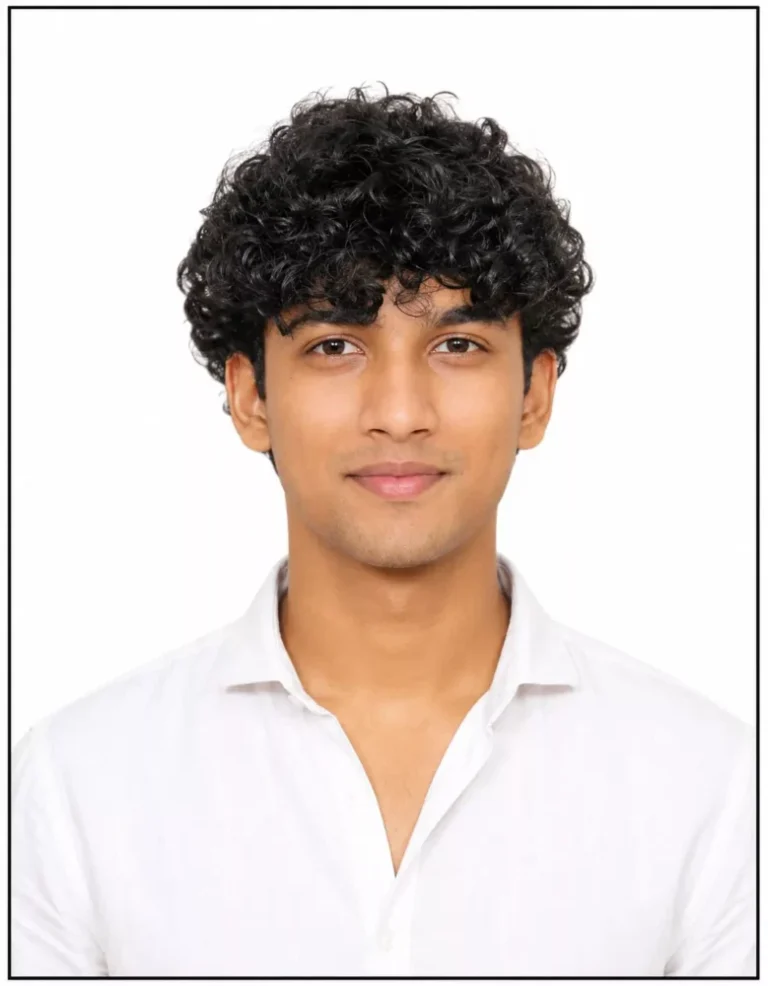
Role: Professional Document Photo Specialist
Task: Transform the uploaded input image into a highly precise, official passport-size photograph.
Specifications:
Dimensions & Resolution (Crucial):
Set the canvas to 3.5 cm x 4.5 cm.
Generate this image at 300 DPI (Dots Per Inch).
The final pixel size must be exactly 413 pixels (width) x 531 pixels (height) to match standard government requirements.
Complete Border:
Apply a perfectly uniform, thin, sharp black border around all four edges (top, bottom, left, and right) of the final image canvas. The border should be consistent on all sides.
Background:
Replace the entire original background with a uniformly flat, pure white background.
Facial Details & Enhancements:
NO ALTERATION: Maintain the exact identity, structure, and expression of the subject's face.
Sharpening: Enhance clarity and focus, specifically if the source face is slightly blurry. Color Balance: Adjust skin tones to be natural, realistic, and professionally balanced.
Lighting: Apply clean, symmetrical studio lighting, introducing a realistic, subtle sheen while preserving natural skin texture and avoiding a "plastic" look.
Output: A high-resolution, compliant, official passport photo. ]
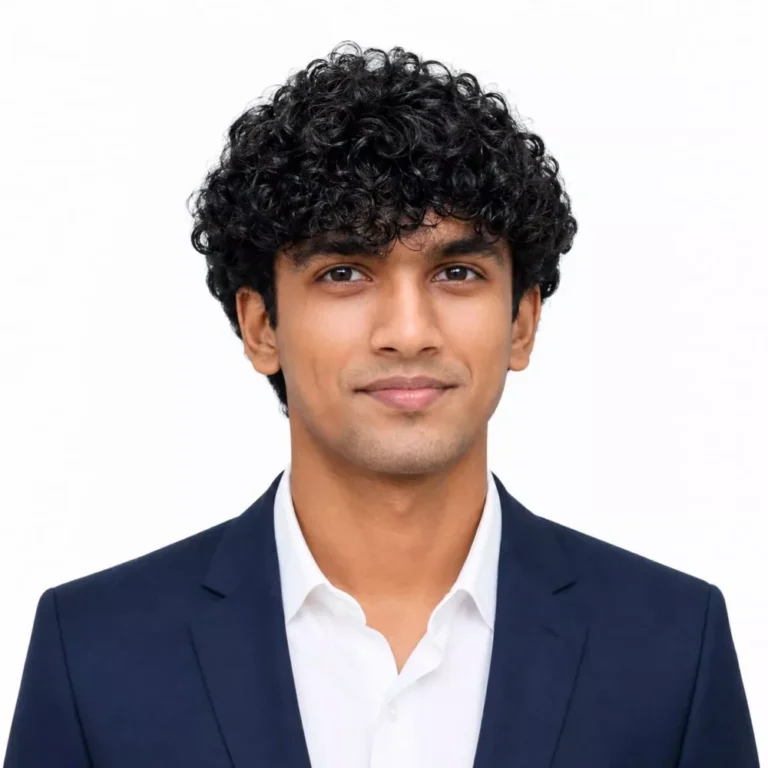
A professional passport-size photo, 2x2 inches, a young man wearing a formal blazer and white shirt, neat hairstyle, neutral expression, plain white background, clear studio lighting, face centered, no accessories.
What Makes a Good Passport Photo?
Although passport photos appear simple, they follow several important guidelines. A successful AI-generated passport photo should include:
- A clear view of the entire face
- Neutral facial expression
- Natural skin colors
- Proper lighting without harsh shadows
- Plain background
- Neat hairstyle
- Clean and wrinkle-free clothing
- Sharp, high-resolution image
Avoid heavy beauty filters, artistic effects, dramatic lighting, or colorful backgrounds because official documents usually require a realistic appearance.
Why the Prompt Matters
The quality of your AI-generated passport photo depends heavily on the instructions you provide.
For example, entering only:
“Convert this image into a passport photo.”
may produce average results.
A detailed prompt performs much better because it instructs the AI to maintain realistic facial features, adjust the background, improve lighting, preserve natural skin tone, center the subject correctly, and create a print-ready passport image.
The more specific your prompt is, the more professional your final photo will look.
How to Create a Passport Photo Using AI
Creating your own passport photo is surprisingly simple.
First, choose a clear image where your face is fully visible. Natural daylight usually provides the best results.
Next, copy the AI prompt and open your preferred AI image editing platform. Upload your photo, paste the prompt, and start the generation process.
Within a short time, the AI will create a clean passport-size version of your image with improved lighting, a professional background, and proper framing.
Many creators also visit Sonu editor to find updated AI prompts and editing tutorials that make the entire workflow even easier.
Tips for the Best Results
Follow these recommendations before uploading your photo:
- Use a high-quality original image.
- Face the camera directly.
- Keep both eyes visible.
- Avoid sunglasses or face coverings unless officially permitted.
- Choose simple clothing without distracting patterns.
- Use natural expressions instead of exaggerated smiles.
- Upload an image with good lighting.
These small improvements can significantly enhance the final AI-generated passport photograph.
Final Thoughts
AI has made passport photo creation easier than ever before. Instead of relying entirely on traditional studios, you can now create professional-looking passport images directly from your smartphone or computer. With a well-written AI prompt and a clear portrait, you can produce realistic, high-quality passport photos that are suitable for many online applications and official purposes.
If you’re looking for the latest AI editing prompts, practical tutorials, and creative image-generation ideas, using trusted resources and detailed prompts will help you achieve consistently impressive results.
Frequently Asked Questions (FAQs)
1. What is a Normal to Passport Size AI Photo Editing Prompt?
It is a detailed AI instruction that converts a regular portrait into a professional passport-style photo with the correct background, lighting, framing, and realistic appearance.
2. Can I use a mobile photo for a passport-size image?
Yes. A clear smartphone photo with good lighting and a visible face usually works very well with AI editing tools.
3. Which AI tool is best for creating passport photos?
Many AI image editing platforms can perform this task. Tools that support detailed prompts generally produce the most accurate and realistic passport-style results.
4. Do I need Photoshop to create AI passport photos?
No. Most AI tools automatically handle background replacement, lighting adjustments, cropping, and image enhancement without requiring Photoshop.
5. Are AI-generated passport photos accepted for official documents?
Acceptance depends on the specific country’s passport or visa requirements. Always verify that the generated photo meets the official size, background, lighting, and facial visibility guidelines before submission.
6. How can I improve AI passport photo quality?
Use a high-resolution original photo, provide a detailed prompt, maintain natural lighting, avoid filters, and ensure your face is clearly visible.